
Authentication#
To access the Dlubal API, you only need to authenticate yourself. Authentication is handled using an API Key, which is automatically included in all requests for validation.
API Key Management#
API keys are unique identifiers used to authenticate the client making a request. While they are linked to your User Account, their usage can extend further. Think of an API key as a project-specific identifier that allows you to share it within your company and track API requests separately for each project.
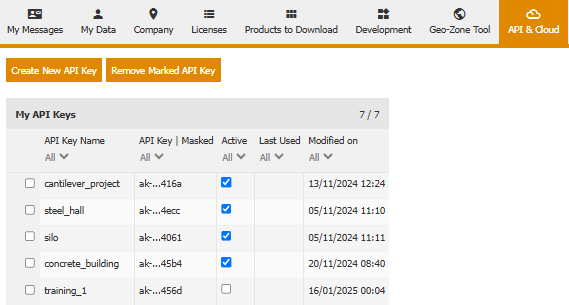
You can manage your API keys in Extranet > API & Cloud.
Important
When you generate a new API key, make sure to copy and securely store it immediately. For security reasons, the key will not be accessible or shown again after creation.
Authentication Process#
The authentication process for API requests follows these steps:
Input the API key in the client initialization:
from dlubal.api import rfem

# Option 1: Specify API key directly as a parameter
with rfem.Application(api_key_value="ak-e72f5da...") as rfem_app:
    # Do stuff

# Option 2: Specify API key using a name from the config.ini file
with rfem.Application(api_key_name="project_2") as rfem_app:
    # Do stuff

# Option 3: Automatically use the default API key from the config.ini file
with rfem.Application() as rfem_app:
    # Do stuff
using Dlubal.Api.Rfem;

// Option 1: Specify API key directly as a parameter
var rfemApp = new ApplicationRfem(apiKeyValue: "ak-e72f5da...");
// Do stuff

// Option 2: Specify API key using a name from the config.ini file
var rfemApp = new ApplicationRfem(apiKeyName: "project_2");
// Do stuff

// Option 3: Automatically use the default API key from the config.ini file
var rfemApp = new ApplicationRfem();
// Do stuff
The server validates the API key against your company profile.
If the key is valid, the request proceeds; otherwise, an error response is returned:
RuntimeError: gRPC Connection error:
UNAUTHENTICATED - API key is invalid or in incorrect format.
For more information, see https://apidocs.dlubal.com/access_control.html.
Storing API Keys Securely#
Important
Using an api_key_name from config.ini is the preferred method, as it helps keep api_key_values secure when sharing scripts.
The config.ini file is populated automatically when both api_key_name and api_key_value are provided together — the key is saved on first use and can be referenced by name on all subsequent runs:
# First run — key is saved to config.ini automatically
with rfem.Application(api_key_name="project_1", api_key_value="ak-e72f5da...") as rfem_app:
    # Do stuff

# Subsequent runs — key is loaded by name, no need to provide api_key_value
with rfem.Application(api_key_name="project_1") as rfem_app:
    # Do stuff
// First run — key is saved to config.ini automatically
var rfemApp = new ApplicationRfem(apiKeyName: "project_1", apiKeyValue: "ak-e72f5da...");
// Do stuff

// Subsequent runs — key is loaded by name, no need to provide apiKeyValue
var rfemApp = new ApplicationRfem(apiKeyName: "project_1");
// Do stuff
The file is located at C:\Users\<username>\AppData\Local\Dlubal\api\config.ini with the following structure:
[api_keys]
project_1 = ak-e72f5da141ba4cce8b736c05ae444f5791aa8b17a372f24c
project_2 = ak-e72f5da141ba4cce198913bb39924c4ca8d78f75623b014a
default = ak-e72f5da141ba4cce8b736c05ae444f5791aa8b17a372f24c
Changed in version 2.14.9: Both Python and C# clients now store config.ini in the user AppData directory.
Previously, the file was located in the Dlubal installation directory
(C:\Program Files\Dlubal\RFEM 6.x\bin\Lib\site-packages\dlubal\api\config.ini).
Access limitations#
If the monthly API request limit defined by your subscription is reached (see Subscriptions & Pricing), an error response is returned:
grpc._channel._InactiveRpcError: <_InactiveRpcError of RPC that terminated with:
   status = StatusCode.UNAUTHENTICATED
   details = "API access has been restricted. Your company does not have permission to use the Dlubal API Service, or the limits defined in your subscription plan have been exceeded."