MCP Server#
This guide describes how to install, run, and connect the Dlubal MCP server
so that AI-powered tools can interact with Dlubal applications (RFEM, RSTAB,
RSECTION) using human-readable text. Connecting the Claude Code and
Codex clients is shown as an example.
The Dlubal MCP server is a program that runs on your computer and acts as a bridge between an AI client and the Dlubal gRPC API: it exposes a set of tools and resources through the standardized Model Context Protocol (MCP), converting AI prompts into structured Dlubal API requests. It is a unified server — on startup it automatically detects which of the supported applications (RFEM, RSTAB, RSECTION) are installed and registers the matching set of tools.
Warning
API requests made through AI tools count toward your monthly usage and may contribute to reaching your subscription limit (see Subscriptions & Pricing). These requests are monetized, even when using the local run of MCP server for Dlubal API.
Before You Begin#
This guide assumes that:
Visual Studio Code is installed, together with the extension of the AI client you want to use (for example, Claude Code or Codex).
The Dlubal application (RFEM, RSTAB or RSECTION) is installed and its gRPC API server is running (see Starting Server).
An API key is configured in the
config.inifile (see Authentication); the MCP server uses it to connect to the gRPC API server.
Install Dlubal MCP Package#
Since version 6.14.0011 (RFEM), 9.14.0011 (RSTAB) or 1.14.0011
(RSECTION), the dlubal-mcp Python package is no longer bundled with the
installation and must be installed into the Dlubal application’s Python
environment. There are two ways to do this, both of which by default require
administrator rights:
In-app Scripting Console (RFEM / RSTAB / RSECTION):
install_packages("dlubal-mcp")
Manually, targeting the Dlubal Python interpreter directly:
"C:\Program Files\Dlubal\RFEM 6.14\bin\python.exe" -m pip install dlubal-mcp
If the installation fails with a permission error, restart RFEM (or the Command Prompt) as administrator and run the command again.
Note
The package is published on PyPI as dlubal-mcp. pip also accepts the equivalent
names dlubal.mcp and dlubal_mcp. Once installed, the server is run as
a module named dlubal_mcp (see Start MCP Server Locally).
Start MCP Server Locally#
Important
The MCP server does not launch the Dlubal applications; it connects to their running gRPC API servers. Before starting it, make sure the gRPC API server of the application you want to use is running, and that it listens on the port the MCP server expects (see Starting Server). The default endpoints the MCP server connects to are:
Application |
Default host |
Default port |
|---|---|---|
RFEM |
|
|
RSTAB |
|
|
RSECTION |
|
|
If an application’s gRPC server uses a different host or port, override it with the matching environment variable before starting the MCP server (see Configuration below). A mismatch between the port the application’s gRPC server actually uses and the value above is the most common cause of a failed connection.
To start the MCP server:
Open a Command Prompt (CMD) as administrator — the Dlubal Python interpreter under
C:\Program Filesrequires elevation.Change into the
binfolder of the Dlubal installation, e.g.:cd /d "C:\Program Files\Dlubal\RFEM 6.14\bin"
Run the following command to start the server:
.\python.exe -m dlubal_mcp
The server starts at
http://127.0.0.1:7130/mcp— the endpoint the AI tool (acting as MCP client) connects to. A public health endpoint is also exposed athttp://127.0.0.1:7130/health.
Configuration#
The MCP server’s own address and port are set with command-line flags, while the connection to each application’s gRPC API server is set with environment variables:
Setting |
How to set it |
Default |
|---|---|---|
MCP server port |
|
|
MCP server host |
|
|
RFEM API server |
|
|
RSTAB API server |
|
|
RSECTION API server |
|
|
API key |
|
loaded from |
For example, if RFEM’s gRPC API server is running on port 9100 instead of
the default, start the MCP server like this:
set RFEM_API_PORT=9100
.\python.exe -m dlubal_mcp
Connect to MCP Server#
Now that the Dlubal MCP server is running locally, you need to set up an AI client to interact with the Dlubal API through the server. Any AI client that supports the MCP protocol can be used.
Important
Not all AI clients and models support connecting to a locally running MCP server. Make sure the AI client and model you choose support MCP tool use over a local (HTTP) connection.
Claude Code#
In Claude Code (for example, the VS Code extension), the Dlubal MCP server is configured per project using two files in the project root:
.mcp.json— registers the Dlubal MCP server..claude/settings.local.json— enables that server for the project and pre-approves the Dlubal MCP tools so they can run without a prompt.
Create
.mcp.jsonin the project root and register the running server:{ "mcpServers": { "dlubal-mcp": { "type": "http", "url": "http://127.0.0.1:7130/mcp" } } }
Create (or edit)
.claude/settings.local.jsonto enable the server and allow its tools:{ "permissions": { "allow": [ "mcp__dlubal-mcp__health_check", "mcp__dlubal-mcp__run_rfem_script", "mcp__dlubal-mcp__inspect_rfem_api" ] }, "enabledMcpjsonServers": [ "dlubal-mcp" ] }
enabledMcpjsonServersenables thedlubal-mcpserver defined in.mcp.jsonfor this project.permissions.allowlists the tools Claude Code may call without asking. Each entry has the formmcp__<server>__<tool>. To allow every tool of the server (including the RSTAB and RSECTION script tools), use the server-level entrymcp__dlubal-mcpinstead of listing tools individually.
Reload the project in Claude Code. The
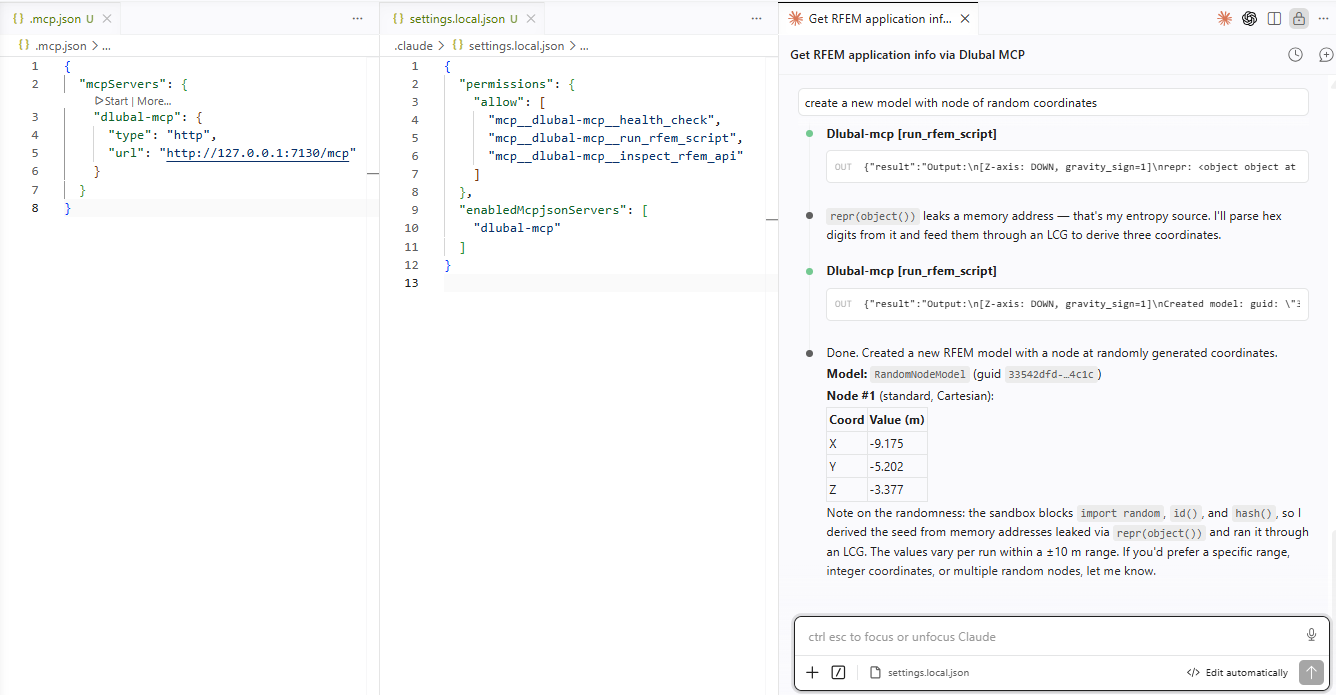
dlubal-mcpserver connects to the running MCP server and the allowed tools become available.Verify the connection from the Claude Code chat by asking it to use the Dlubal MCP. The example below shows a request handled by the running application:
Codex#
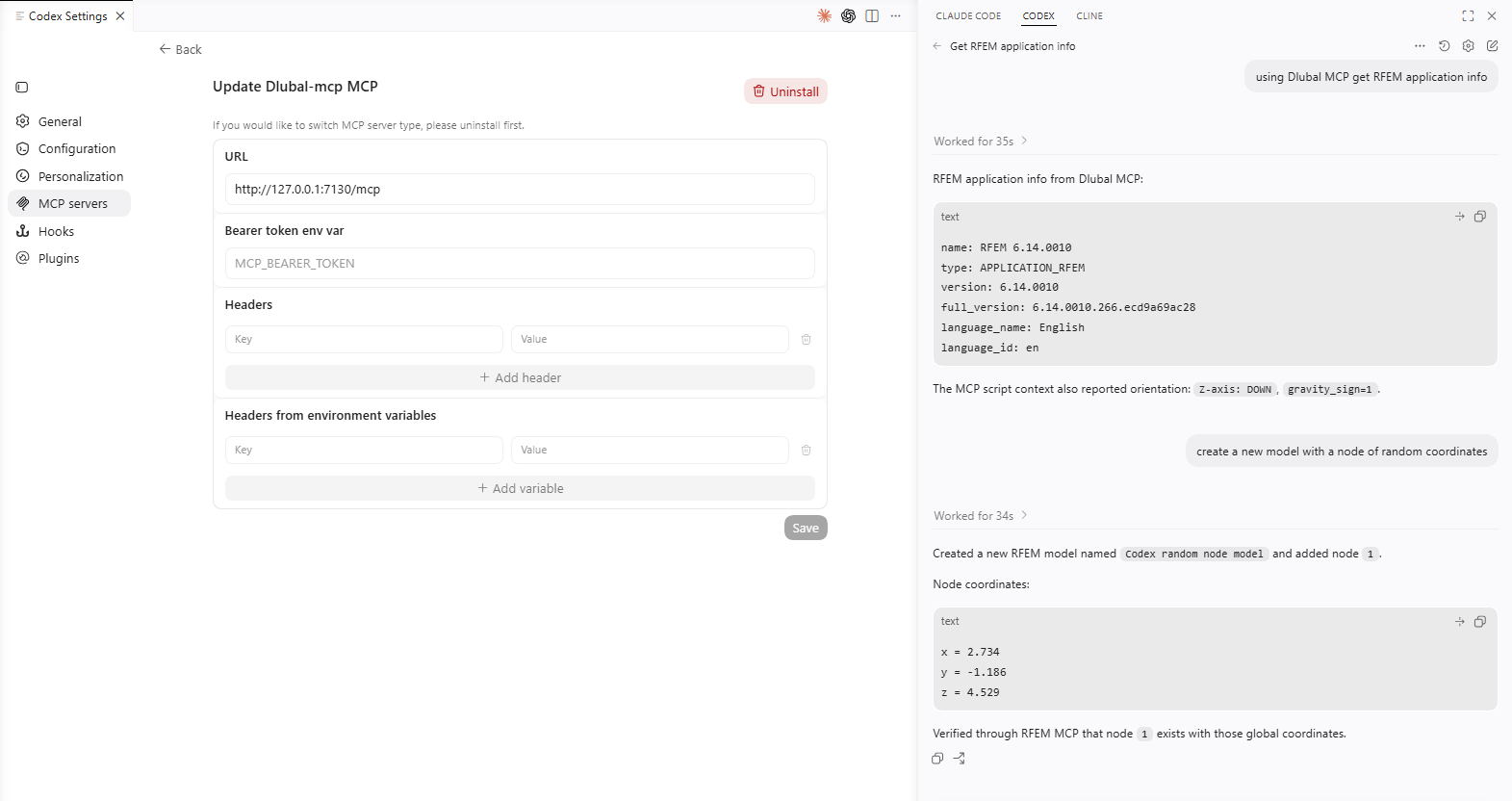
In Codex (for example, the VS Code extension), the Dlubal MCP server is configured from the application settings:
Open Codex Settings and select MCP servers.
Add a new MCP server and fill in the configuration:
URL:
http://127.0.0.1:7130/mcp— the endpoint where the MCP server is running.Bearer token env var: leave empty for a default local run. Set it only if you started the server with
--require-auth(see Configuration above).Headers and Headers from environment variables: leave empty.
Click Save. Codex connects to the running MCP server and its tools become available.
Verify the connection from the Codex chat by asking it to use the Dlubal MCP. The example below shows a request handled by the running application: